
Simple choices often take more time than they should. A class needs a fair name picker. Friends debate over dinner plans. A party host wants one clear winner from a list. These small moments should feel fun, not stressful.
Spin the Wheel Pro Max turns that choice into an interactive game experience.
Add player names and attach an image to each person if you want a more personal round. Choose between Single Wheel and Double Wheel mode. Adjust the theme, spin speed, celebration style, and sound. Then press Spin and watch the action unfold.
The wheel builds excitement as it moves. The pointer stays fixed while the RPM rises and then slows near a result. When the wheel stops, the winner appears clearly on the card, popup, and history panel. Everyone sees the same outcome at the same time.
This tool goes beyond a basic random picker. It offers control, customization, and a structured game layout. You can spin one wheel for a quick decision or use two wheels to create matchups, team picks, or tournament pairings. Shuffle players, remove winners, or reset the session whenever you need.
No app is required. No download is needed. The game runs directly in your browser on mobile, tablet, laptop, or desktop. Open the page, add your list, and let the wheel decide.
Quick note: This wheel is made for casual games, classroom picks, family choices, and fun random results. It is not built for paid raffles, gambling, or official legal drawings.
The Spin Makes the Choice More Engaging
A basic random picker shows a result at once. That works, but it feels plain. Spin the Wheel Pro Max builds anticipation before the final result appears. The wheel moves with visible speed. The pointer stays fixed at the top. The RPM rises and then slows near a name. In Double Wheel mode, two wheels can spin at the same time. This creates more tension because players wait to see two results instead of one.
The stats panel adds structure to each round. Players can see the mode, number of players, spin count, peak RPM, and last winner. These small details make the experience feel organized and fair.
Each spin ends with a clear winner card, popup, and result display. Everyone sees the same outcome on the screen. The short pause before the stop makes the final name feel earned, not random.
Want more quick games and fun tools? Explore the full Games & Entertainment tools collection on FlashyTools.
Add Names, Teams, or Any Choice
You can enter one option per line in the player box. Keep names short so the wheel stays clean and easy to read. The tool works with names, teams, prizes, tasks, or any short decision list. Each player now has their own card. You can upload an image directly next to each name. The image stays linked to that player during the session. You do not need to match images by order anymore.
You can choose to show or hide photos on the wheel. You can also hide names if you want a surprise effect. These controls allow you to adjust how the wheel looks before each round. Images stay inside your browser. The tool does not upload or store them. This keeps the session private and secure.
How to Play Spin the Wheel Pro Max
Open the player box and remove sample names. Add one name or option per line. Upload an image next to each player if you want a visual game experience. Choose your wheel type. Select Single Wheel for one result per round. Select Double Wheel to run two wheels at the same time. In Double mode, you can use the same list or split players evenly between Wheel A and Wheel B.
Select a game mode such as Classic, Elimination, Challenge, or Speed. Adjust theme, celebration style, sound, and spin speed from the customization panel.
Press Spin in Single mode. In Double mode, choose Spin A, Spin B, or Spin Both. The wheel stops and shows the winner clearly on the card and popup.
Use Shuffle to change order. Use Remove Winner to keep rounds fair. Press Reset Game to start fresh.
Single Wheel or Double Wheel Mode
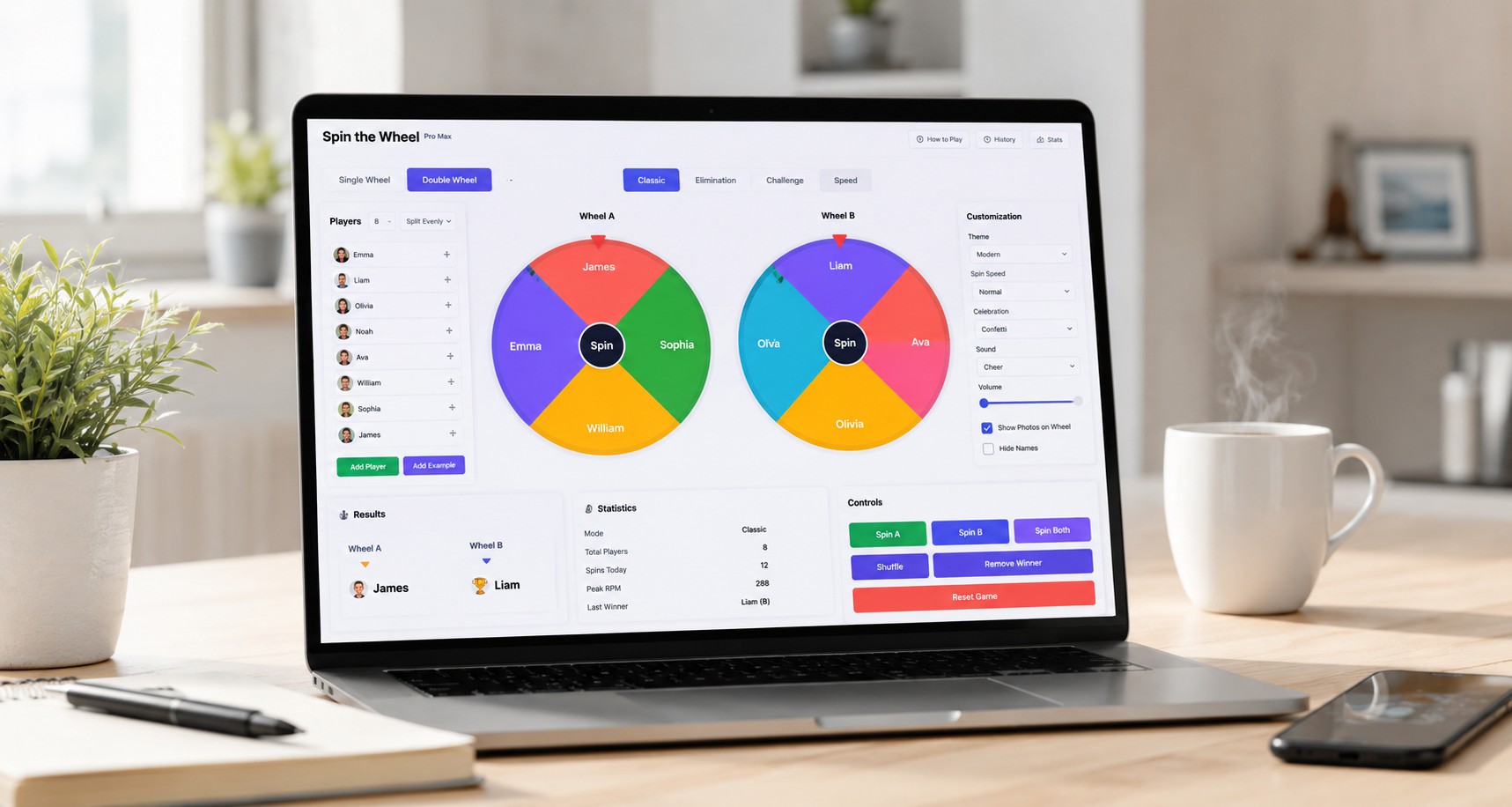
Single Wheel mode works best for quick decisions. It selects one name from the full list. This mode fits classroom picks, food choices, and simple games.
Double Wheel mode creates two separate results in one round. You can spin both wheels together or control each wheel on its own. This setup works well for team matchups, debate sides, partner selection, or tournament rounds.
You can keep the same player list on both wheels. You can also split players evenly between Wheel A and Wheel B. This feature makes the tool useful for competitive or group-based games.
Pick the Mode That Fits Your Game
Each mode gives the wheel a different feel. You can keep the game simple, make each round fair, add a fun task, or use a faster spin. Pick the mode that matches your group and the type of choice you need.
Classic Mode
Classic mode keeps the game quick. Add your names or choices, tap Spin, and let the wheel pick one result. This mode works best for simple moments. Use it to pick a food choice, a student turn, a game player, a team name, or a quick family decision. It keeps the round clear and easy.
Elimination Mode
Elimination mode helps when each person should win only once. After the wheel picks a winner, you can remove that name from the next round. This mode works well for prize games, classroom turns, team picks, and group rounds. It helps keep the game fair because the same name does not need to stay on the wheel again.
Challenge Mode
Challenge mode adds extra fun after the winner appears. The wheel does not only pick a name. It also gives that winner a small task. The task stays safe and easy. A winner may choose the next round, make a short celebration, or let someone guess the next pick. This mode fits parties, kids’ games, family nights, and class activities.
Speed Mode
Speed mode adds more energy to the wheel. The RPM can rise higher, and the spin can last longer. The result feels more dramatic because everyone can watch the wheel slow down. This mode works best when you want a louder, more exciting round. It also looks great on a large screen, such as a classroom display, TV, or laptop in front of a group.
Customize Your Wheel
The customization panel allows you to adjust how the game looks and feels. You can choose a color theme that matches your event. You can select a spin speed that feels calm or dramatic. Choose a celebration style to change how the winner appears. Select a sound style or turn sound off completely. Adjust the volume using the slider.
You can also enable or disable photos on the wheel. You can hide names for a surprise result. These options change the visual experience but do not affect fairness.
Which Wheel Mode Should You Use?
Each mode fits a different type of game. Use this quick table before you spin.
| Mode | Best For | How It Feels | Good Example |
|---|---|---|---|
| Classic | Fast names, choices, or simple picks. | Clean, quick, and easy. | Pick a student, food choice, or game turn. |
| Elimination | Fair rounds where each winner should win once. | More controlled and fair for groups. | Prize rounds, class turns, or team picks. |
| Challenge | Parties, kids’ games, and family fun. | More active because the winner gets a task. | Truth or dare, party games, or classroom fun. |
| Speed | Exciting rounds on a big screen. | Fast, loud, and more dramatic. | Final winner pick, birthday game, or group event. |
No Download Needed
You do not need to install anything. The tool runs directly in your browser on mobile, tablet, laptop, or desktop. Open the page, add your list, and start the round.
FlashyTools.com gives you that simple path. Open the tool, add your list, choose a mode, and spin.
One Wheel, Many Ways to Play
This tool can act as a random picker, a name picker, or a full game. It depends on what you add to the list. Use it as a random picker when you need one choice from many options. Add foods, tasks, prizes, movie ideas, chores, or answers. The wheel can help you choose fast without a long debate.
Use it as a name picker when you add people. A teacher can pick a student. A parent can pick a child for the next turn. Friends can pick a player for a challenge. The wheel makes the choice feel fair because everyone can see the same result.
Use it as a game when you want more energy. The sounds, RPM panel, game modes, winner popup, and celebration effects make each round feel alive. The wheel gives players a moment to watch and wait, not just a plain answer on a screen.
Where This Wheel Works Best
This wheel fits many real-life moments. A teacher can use it to pick a student for a question, class task, or group role. It helps spread turns across the class in a simple way. A parent can use it at home for chores, game turns, bedtime picks, or weekend plans. Kids often accept the result more easily when the wheel makes the choice.
A party host can add dares, prizes, team names, or funny tasks. The winner popup and sound effects make the result feel like part of the event. A small team can use it at work too. It can pick a presenter, lunch spot, icebreaker question, meeting order, or quick task owner.
Team and Tournament Use
Double Wheel mode works well for competitive setups. You can create random matchups between players. You can divide a group into two sides. You can generate partners for activities or group tasks.
This setup works well for classroom debates and sports brackets. It reduces arguments because the wheel decides without bias. Each result appears clearly on both wheels and in the result panel.
Tips Before You Spin
Use short names so the text stays clean and easy to read on the wheel. Long phrases can crowd the layout and make results harder to see, especially on smaller screens. Check your list before you begin. Remove duplicate entries unless you want to give someone a higher chance. Each entry appears once on the wheel, so extra copies change the odds.
Select Elimination mode when each player should win only once. This helps keep rounds fair in classrooms, prize games, and group activities. Choose Split Evenly in Double Wheel mode when you want balanced teams or matchups. This option divides players into two groups without manual sorting.
Turn off photos if your list is large and you want smoother performance. Images add personality, but text-only mode keeps the wheel light and fast. Decide the rules before the first spin. Let everyone know if winners can repeat or if each result is final. Clear rules prevent debate and keep the game moving.
Fair Picks and Private Photos
Each valid entry receives equal space on the wheel. Custom themes, speed changes, and visual effects do not change the selection logic. The winner name appears on the wheel, result card, popup, and history panel. This consistency helps avoid confusion during group play.
Images stay inside your browser session. The tool does not upload or save them. Reset the game or refresh the page to clear the current round. This wheel fits casual games and group decisions. It does not replace official contest systems that require legal documentation.
Player Questions Before You Spin
Is this a spin the wheel app?
This tool works like an app, but it runs in your browser. You can open it on mobile, tablet, laptop, or desktop without an install.
Is the wheel free to use?
FlashyTools lets you use this wheel at no cost. Add your names or choices and start the game from the page.
Can this work as a random picker?
The wheel can pick one result from any list you add. You can use names, prizes, chores, teams, foods, or party tasks.
Can I use it as a name picker?
Add one name per line and press Spin. The wheel will pick one name and show it in the result card and popup.
Can I add photos to names?
Photos are optional. You can upload an image next to each player name. Each image stays linked to that player during the session. Images remain inside your browser and are not stored by the tool.
Do I need to download anything?
The wheel runs online, so no download is required. Open the page, add your list, and play.
Which mode is best for parties?
Challenge mode works well at parties because it adds a simple task after the winner appears. It makes each round feel more active.
Which mode helps with fair turns?
Elimination mode helps when each person should win once. Remove the winner after each round and spin again.
Why does Speed mode run longer?
Speed mode gives the wheel more energy. It can reach a higher RPM and take more time to slow down.
Can I use this wheel for giveaways?
This wheel fits casual giveaways and fun picks. Official contests may need rules, records, or legal steps, so use a formal contest system for those cases.
What is Double Wheel mode?
Double Wheel mode allows you to spin two wheels at the same time. You can use the same player list on both wheels or split players evenly between Wheel A and Wheel B. This works well for team matchups, partner selection, or tournament rounds.
This improves ranking for:
- double spin wheel
- team wheel generator
- two wheel spinner
Let the Wheel Decide
Group decisions do not need long debates. Spin the Wheel Pro Max gives you a clear answer in seconds. Add your names, teams, prizes, or tasks. Choose Single or Double Wheel mode. Adjust the settings if you want more energy or a cleaner layout.
Press Spin and watch the result appear across the wheel, card, and history panel. Everyone sees the same outcome at the same time. No confusion. No second guessing.
Start another round right away. Shuffle the list, remove a winner, or reset the session. Keep the pace steady and let the wheel handle the choice.