
Steps to Miles, Km, Time, and Calories Calculator
Some days you hit a nice round number like 10,000 steps and feel proud. Then you try to translate it into miles and get three different answers from three different tools. That is not because math is broken. It is because the tool must guess how you move. Pace matters. Height matters. Stride matters. A good calculator shows miles and km, but it also shows time, steps per minute, and a calorie estimate so you can spot a weird result fast.
This guide focuses on the three options inside your tool. Quick, Height-Based, and Custom Stride. Each one fits a different type of user.
Quick mode gives a fast answer
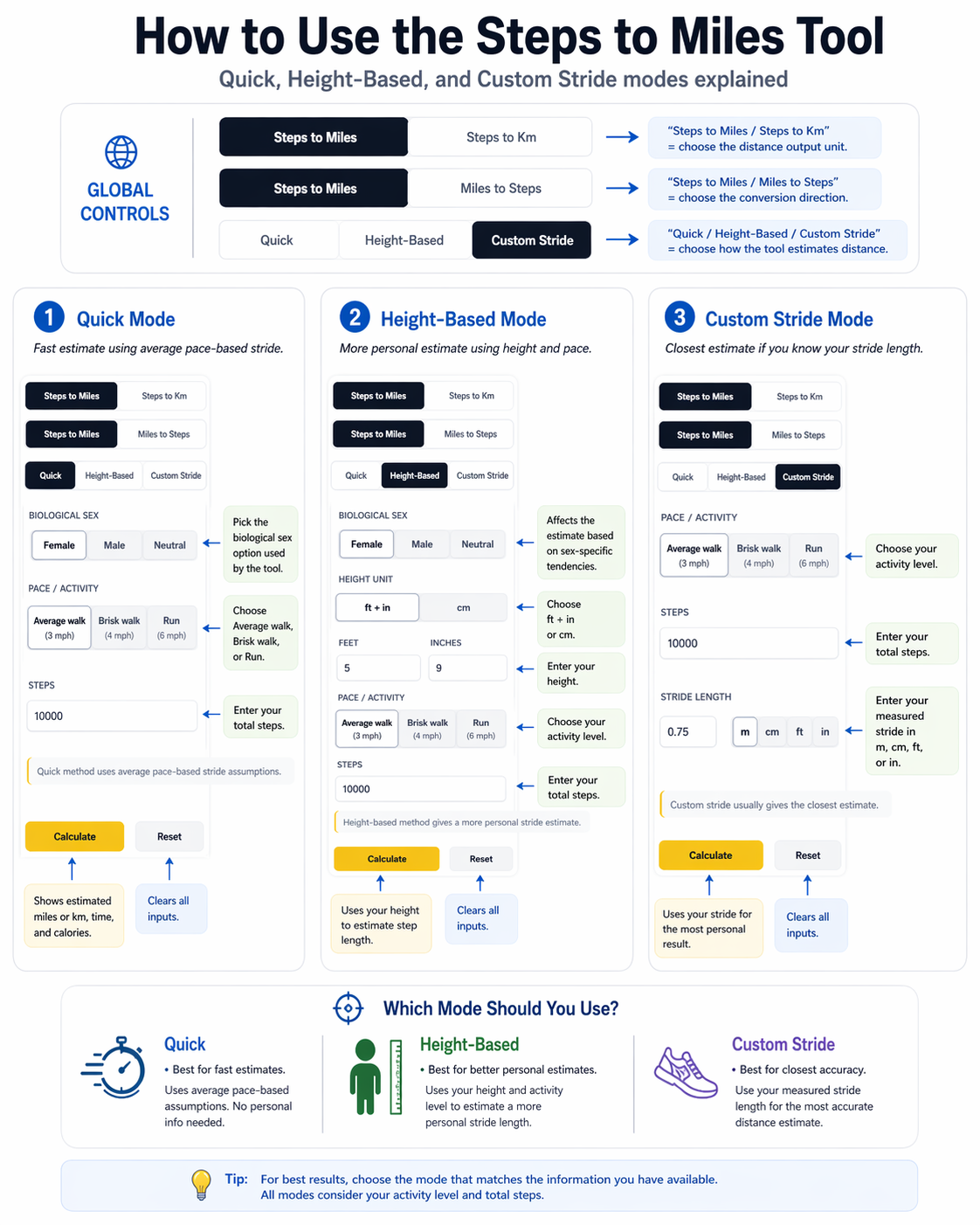
Quick mode fits days when you want a clean estimate with one input. Steps. You also pick your pace. That pace choice matters. A brisk walk covers more ground per 1,000 steps than a slow walk. A run can cover even more.
Quick mode uses a pace-based average. Most tools use a steps-per-mile range behind the scenes. That range must change with pace. A good calculator does not reuse one fixed number for every pace.
These ranges keep results realistic for most adults:
- Average walk (3 mph): about 2,200 to 2,350 steps per mile
- Brisk walk (4 mph): about 2,000 to 2,200 steps per mile
- Run (6 mph): about 1,700 to 1,950 steps per mile
Quick mode also has a simple sanity check. Enter 10,000 steps and see if the miles land in a normal band:
- Average walk: about 4.3 to 4.6 miles
- Brisk walk: about 4.5 to 4.8 miles
- Run: about 5.6 to 6.2 miles
If average walk keeps jumping over 5 miles, the tool likely uses a stride that is too long. That makes the estimate look better than real life.
| Mode | What you enter | What it uses | Best choice when |
|---|---|---|---|
| Quick | Steps + pace | Average pace-based assumption | You want a fast estimate |
| Height-Based | Steps + pace + height + sex | Step length from height | You want a more personal estimate |
| Custom Stride | Steps + pace + stride | Your measured step length | You want the closest result |
Quick mode stays useful because it feels simple. Just remember it stays an estimate. A pace change can shift the result even with the same steps.
Steps to Miles quick reference
Numbers below are estimates. Your stride, pace, and device tracking can change results.
| Steps | Average walk (3 mph) | Brisk walk (4 mph) | Run (6 mph) |
|---|---|---|---|
| 1,000 | ~0.4 miles | ~0.5 miles | ~0.6 miles |
| 2,000 | ~0.9 miles | ~1.0 miles | ~1.2 miles |
| 3,000 | ~1.3 miles | ~1.6 miles | ~1.8 miles |
| 4,000 | ~1.8 miles | ~2.1 miles | ~2.4 miles |
| 5,000 | ~2.2 miles | ~2.6 miles | ~3.0 miles |
| 6,000 | ~2.7 miles | ~3.1 miles | ~3.6 miles |
| 7,000 | ~3.1 miles | ~3.6 miles | ~4.2 miles |
| 8,000 | ~3.6 miles | ~4.1 miles | ~4.8 miles |
| 9,000 | ~4.0 miles | ~4.7 miles | ~5.4 miles |
| 10,000 | ~4.4 miles | ~5.2 miles | ~6.0 miles |
Height-Based mode gives a more personal estimate
Quick mode uses an average. Height-Based mode uses you. It starts with your height and builds a step length estimate from it. That small change can fix a lot of drift. A tall person often covers more distance per step. A shorter person often covers less. This mode still stays an estimate, but it usually lands closer than Quick mode.
A simple height method uses a small sex adjustment. The tool first converts your height into meters. Then it applies one of these multipliers:
- Female step length ≈ height × 0.413
- Male step length ≈ height × 0.415
- Neutral step length ≈ height × 0.414
Pace still matters. A brisk walk can stretch step length a bit. A run can stretch it more. Cadence can rise too, so the tool should keep the pace adjustment small and realistic.
Height-Based mode fits best in these cases:
- You walk outdoors most days.
- You want a better guess but you do not know your stride.
- Your walking style stays steady.
This mode matters less when steps come from tight indoor spaces. Short turns and stop-start movement reduce distance per step. Treadmill steps can also differ from outdoor steps. In those cases, Custom Stride can give the cleanest result.
Custom Stride mode gives the closest estimate
Custom Stride mode has one job. It uses your real step length instead of a generic guess. This helps a lot when other modes feel off. You enter the stride value you measured, and the tool uses it to calculate distance from your steps. That makes the result more personal than Quick mode or Height-Based mode.
The tool should let you enter stride in meters, centimeters, feet, or inches. It should convert that value into meters in the background. After that, the math stays simple: the tool multiplies your steps by your step length to estimate total distance. Custom Stride works well when your steps come from a treadmill or tight indoor spaces and it also helps if you have a very short or tall frame, since “average” settings often miss those extremes, it can help if an injury changes your step length. It can also help runners who use shorter steps with a faster cadence.
You can measure stride at home in a few minutes. Walk 20 to 30 normal steps on flat ground. Measure the full distance from start to finish. Divide that distance by the number of steps. Use that number as your step length in the tool. If you want the fewest surprises, Custom Stride is the mode to pick.
Pace controls the time and the step rate
A pace choice must change more than the label. It must change the time result too. If the tool shows the same time no matter what pace you pick, the estimate is not reliable.
Most tools use three simple pace anchors. Average walk sits near 3 mph. Brisk walk sits near 4 mph. A run sits near 6 mph. These anchors also match common time ranges per mile. A 3 mph walk takes about 20 minutes per mile. A 4 mph walk takes about 15 minutes per mile. A 6 mph run takes about 10 minutes per mile.
Time math should stay simple. The tool can divide distance by speed, then convert hours to minutes. That result should match the pace you selected. If you see a big mismatch, the tool likely uses the wrong speed behind the scenes.
Steps per minute should also come from the result, not a fixed guess. The tool can take your step total and divide it by the total minutes. This gives a step rate that fits your input. If you change pace, the time changes. That changes steps per minute too. A tool that prints the same steps-per-minute value every time usually uses a static table.
Calories need a clear “estimate” label
Calories vary a lot between people. Weight, terrain, and effort all change the number. A calculator can still help, but it must stay honest. It should treat calories as an estimate, not a fact.
Weight makes this feature far more useful. If the user enters weight, the tool can scale the calorie estimate in a reasonable way. If the user leaves weight blank, the tool can use a reference weight, such as 70 kg, and say so in the result.
A simple weight-based estimate many tools use is:
calories = steps × 0.04 × (weight / 70)
This is not a medical number. It is a planning estimate. The tool should also guide unit input. A kilogram example can be 70. A pounds example can be 154. This small hint stops unit mix-ups, which is one of the most common reasons calorie results look wrong.
Why your calories number can look different than another app
Two apps can show different calorie totals for the same steps. That does not always mean one app is wrong. Many apps use different weight assumptions, pace assumptions, or activity multipliers. Your tool should make weight optional, but clear. If a user enters weight, the estimate gets more personal. If weight is blank, the tool can use a default reference like 70 kg and say so.
Calories also change with pace. A brisk walk often burns more per minute than an easy walk. A run often burns more again. Your tool can reflect this without making medical claims. It should label calories as an estimate. A better calorie result does not need fancy science. It needs honest assumptions and clear input labels.
A simple way to read the calorie estimate
If you want a rough daily check, use the estimate as a range in your head. Treat it like a planning number, not a promise. Use the same settings each time so your comparisons stay consistent.
Miles and kilometers must match every time
Miles and kilometers come from the same distance. The tool should not treat them as two separate guesses. It should calculate one distance, then convert it.
These two conversions should stay exact:
- 1 mile = 1.609344 km
- 1 km = 0.621371 miles
If the miles and km numbers do not agree, the tool has a math or display bug. That is not an accuracy debate. It is a logic problem.
Reverse modes help when you plan a target
Reverse modes matter when you start with a distance goal, not a step goal. Many people plan a “3-mile walk” or an “8 km run.” They do not plan “7,200 steps.” Reverse modes solve that problem.
Your tool has two reverse options. Miles to Steps turns a mile goal into an estimated step target. Km to Steps does the same in kilometers. The step total will change with the method you pick. Quick gives a fast estimate. Height-Based uses your height to adjust step length. Custom Stride uses your real step length if you know it.
Reverse mode also helps when you track distance on a treadmill or route app but want to compare it to your daily step goal. The tool makes that comparison easy. Reverse results change with the same method choice, so Quick, Height-Based, and Custom Stride can give different step targets.
Use Miles to Steps the right way
Pick Miles to Steps if your goal is in miles. Enter the distance. Pick your pace. Then pick a method. Quick works when you want speed. Height-Based works when you want a more personal estimate. Custom Stride works when you measured stride once and you want the closest result.
The tool should also show time and calories in reverse mode. Those numbers help you plan a realistic session. A step goal is not helpful if you do not know how long it may take.
Use Km to Steps the right way
Pick Km to Steps if your goal is in kilometers. Enter the km value. Choose pace and method the same way.
The tool should keep the miles and km conversion consistent in reverse mode too. It should not produce a km target that converts to a different mile value in the result card.
Small note about reverse accuracy
Reverse results depend on assumptions. Quick mode uses an average. Height-Based uses height. Custom Stride uses your measured number. Reverse mode can be very close, but it still stays an estimate unless stride is measured.
Steps and km, fast lookup chart
| Steps | Average walk (3 mph) | Brisk walk (4 mph) | Run (6 mph) |
|---|---|---|---|
| 1,000 | ~0.6 km | ~0.8 km | ~1.0 km |
| 2,000 | ~1.4 km | ~1.6 km | ~1.9 km |
| 3,000 | ~2.1 km | ~2.6 km | ~2.9 km |
| 4,000 | ~2.9 km | ~3.4 km | ~3.9 km |
| 5,000 | ~3.5 km | ~4.2 km | ~4.8 km |
| 6,000 | ~4.3 km | ~5.0 km | ~5.8 km |
| 7,000 | ~5.0 km | ~5.8 km | ~6.8 km |
| 8,000 | ~5.8 km | ~6.6 km | ~7.7 km |
| 9,000 | ~6.4 km | ~7.6 km | ~8.7 km |
| 10,000 | ~7.1 km | ~8.4 km | ~9.7 km |
A quick accuracy test you can do in 30 seconds
You do not need a lab test to spot a bad tool. A few quick inputs can show if the settings look realistic.
Start with Quick mode. Pick Average walk. Enter 1,000 steps. Many users will see about 0.4 to 0.5 miles. Enter 10,000 steps and you should often see about 4.3 to 4.6 miles.
Switch to Brisk walk with the same 10,000 steps. Many users land around 4.5 to 4.8 miles. Switch to Run and test again. A common range sits around 5.6 to 6.2 miles.
Now switch to kilometers output. The km value should match the miles value through conversion. It should not drift.
Height-Based mode should shift the result a bit when you change height. Taller height should raise distance slightly. Shorter height should lower it slightly. Custom Stride should follow your stride value directly.
If brisk walk keeps landing near 5.0 miles or higher at 10,000 steps for most users, the tool likely overstates brisk stride. A simple pace adjustment can fix that.
What to do when results look “too high” or “too low”
Users often react to one thing. The miles feel off. When that happens, the fastest fix is to check the settings. First, confirm pace. Average walk and brisk walk can move the result. Next, confirm method. Quick mode can drift more. Height-Based usually tightens it. Custom Stride often gives the closest result.
If your result looks high, try Height-Based with correct height and If it still looks high, try Custom Stride with a measured step length. If your result looks low, check if your steps came from indoor movement with many turns, that often lowers distance per step. A device can also miscount steps. A phone in a loose pocket can undercount. A phone in a bag can undercount more. A watch often counts better.
One clean rule that helps most people
If you want the closest distance, measure stride once and use Custom Stride. If you do not want to measure stride, use Height-Based.
Pick the mode that matches your day
Quick mode fits days when you want a fast answer. It works well for casual checks. Use it after a walk when you only care about a rough distance. Height-Based mode fits when you want a better estimate but you do not know your stride length. This mode uses your height, so it usually beats a generic average. It also helps when two people enter the same steps but have very different body size.
Custom Stride mode fits when you want the closest estimate. It works best after you measure stride once and reuse it. Treadmill users often like this mode because treadmill steps can feel different from outdoor steps. A good tool makes this choice easy. It shows the mode clearly in the input area. It also repeats the mode inside the result summary so users do not forget what the tool used.
What the result card must show to feel reliable
A result card should not only show miles and stop. It should explain the input choices that shaped the number. That is how a user trusts the estimate.
A strong card shows the direction first. Steps to Miles, Miles to Steps, Steps to Km, or Km to Steps. Next, it shows the method. Quick, Height-Based, or Custom Stride. After that, it lists the inputs the tool used. Pace should appear. Steps or distance should appear. Height should appear if the user picked Height-Based. Stride should appear if the user picked Custom Stride. Weight should appear if the tool used it for calories.
The output section should feel complete. Miles and km should appear together. Time should appear too. Steps per minute should appear so users can spot weird results. Minutes per mile or minutes per km should match the chosen pace. Calories should show as an estimate, not a promise. Two short guide lines help a lot. One line should remind the user that the result is an estimate based on stride assumptions. One line should turn the result into a simple real-life frame, such as total minutes at the selected pace. These lines reduce confusion and reduce complaints.
Indoor steps can mean less distance
People often compare one day to another and feel confused. The step total looks similar, but miles look different. Indoor steps often cover less distance than outdoor steps. A home walk has short turns. Office steps include stops. Hallway movement can shorten step length. Outdoor walking on a straight path often creates a more stable stride.
Your calculator cannot detect where you walked. It only estimates based on the mode you pick. Custom Stride helps most in indoor cases. Height-Based can also help. Quick mode can still work, but it has the biggest swing and add one simple idea to your habits. Use Quick mode for quick checks also use Height-Based for a better average. Use Custom Stride when you care about closeness.
Popular Questions About Steps, Miles, Km, Time, and Calories
These answers match the tool logic and keep the estimates simple, useful, and easy to understand.
One mile is usually about 2,200 to 2,300 steps in Average Walk mode. In Brisk Walk mode, it is often close to 1,900 to 2,000 steps. In Run mode, one mile can drop to about 1,650 to 1,700 steps. Height-Based and Custom Stride can shift that result because step length changes from person to person.
1,000 steps is about 0.4 miles in Average Walk mode, about 0.5 miles in Brisk Walk mode, and about 0.6 miles in Run mode. The exact number can change if you use Height-Based or Custom Stride.
2,500 steps is usually about 1.1 miles at an average walk, about 1.3 miles at a brisk walk, and about 1.5 miles in run mode. This works as a quick estimate. A personal stride value can move the result a bit higher or lower.
5,000 steps is usually not 3 miles in normal walking mode. In this calculator, 5,000 steps is about 2.2 miles in Average Walk mode and about 2.6 miles in Brisk Walk mode. It reaches about 3.0 miles in Run mode. Height-Based and Custom Stride can adjust the total, but 3 miles is not the usual result for average walking.
10,000 steps is about 4.4 miles in Average Walk mode, about 5.2 miles in Brisk Walk mode, and about 6.0 miles in Run mode. This is one of the most searched step totals because many people use 10,000 steps as a daily goal.
14,000 steps is about 6.2 miles in Average Walk mode, about 7.3 miles in Brisk Walk mode, and about 8.4 miles in Run mode. The tool gives a cleaner result when you choose the pace that matches your actual movement.
15,000 steps is about 6.6 miles at an average walk, about 7.8 miles at a brisk walk, and about 9.0 miles in run mode. A shorter stride can lower that number. A longer stride can raise it.
20,000 steps is about 8.8 miles in Average Walk mode, about 10.4 miles in Brisk Walk mode, and about 12.0 miles in Run mode. That is a high daily total, so Custom Stride can help if you want a closer estimate.
30,000 steps is about 13.2 miles in Average Walk mode, about 15.6 miles in Brisk Walk mode, and about 18.0 miles in Run mode. Long totals like this can show a wider gap if your stride is shorter or longer than average.
This tool uses one of three methods. Quick mode uses a pace-based average. Height-Based mode uses your height and sex to estimate step length. Custom Stride uses your own measured stride. The tool also uses pace to estimate time, step rate, and calorie burn. Calories stay a rough estimate, especially if weight is not entered.
The right daily amount depends on health, age, and goals. Many people use 7,000 to 10,000 steps as a practical target. A shorter daily walk still helps if that fits your routine better. A simple habit you can keep matters more than a perfect number on paper.